Everything you do to one image, done to the whole folder.
Build a workflow once: resize, crop, add a watermark, convert the format, fit a file size. Then run it on hundreds of images, or let Burnish watch a folder and do it for you.
Works offline · no account · originals are never changed
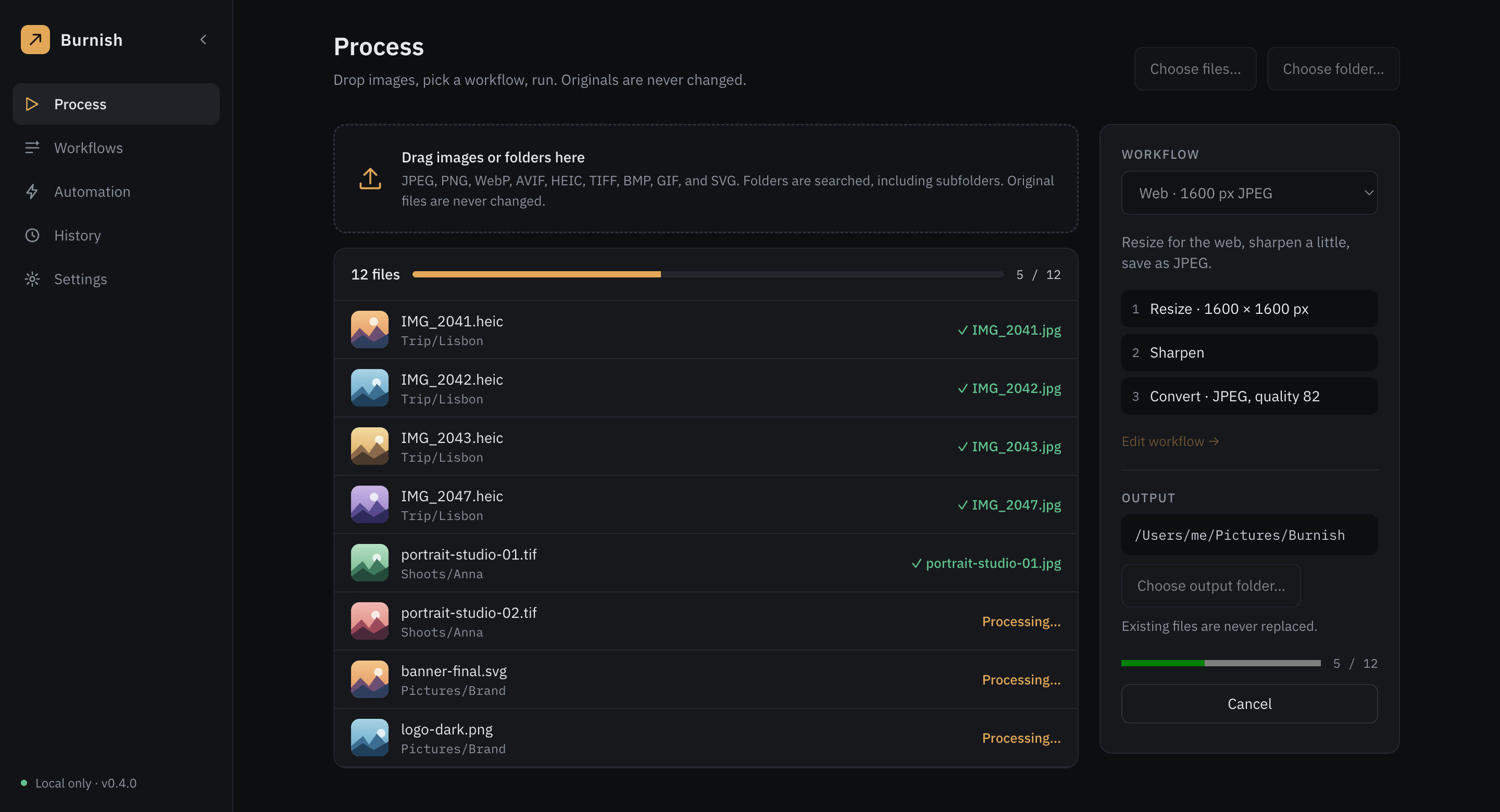
What it does
A pipeline you build from steps, and run on anything.
Build once. Run on anything.
Chain steps in the order that makes sense: resize, crop, rotate, sharpen, blur, adjust, gray and sepia, pad, border, rounded corners, watermark, and convert. Add an if step to treat landscape and portrait differently. The watermark, trim, border, rounded corners, and if steps are part of Pro.
Everything runs on your computer. There is no account and no telemetry, and your images never leave it.
29 ready-made workflows
For social networks, online stores, web pages, and messaging. Pick one and go; the three that fit a file size need Pro.
Fit a file size Pro
Ask for at most 500 KB, or half the original. Burnish lowers the quality, and if you allow it, the image size, until the file fits.
Folders that take care of themselves Pro
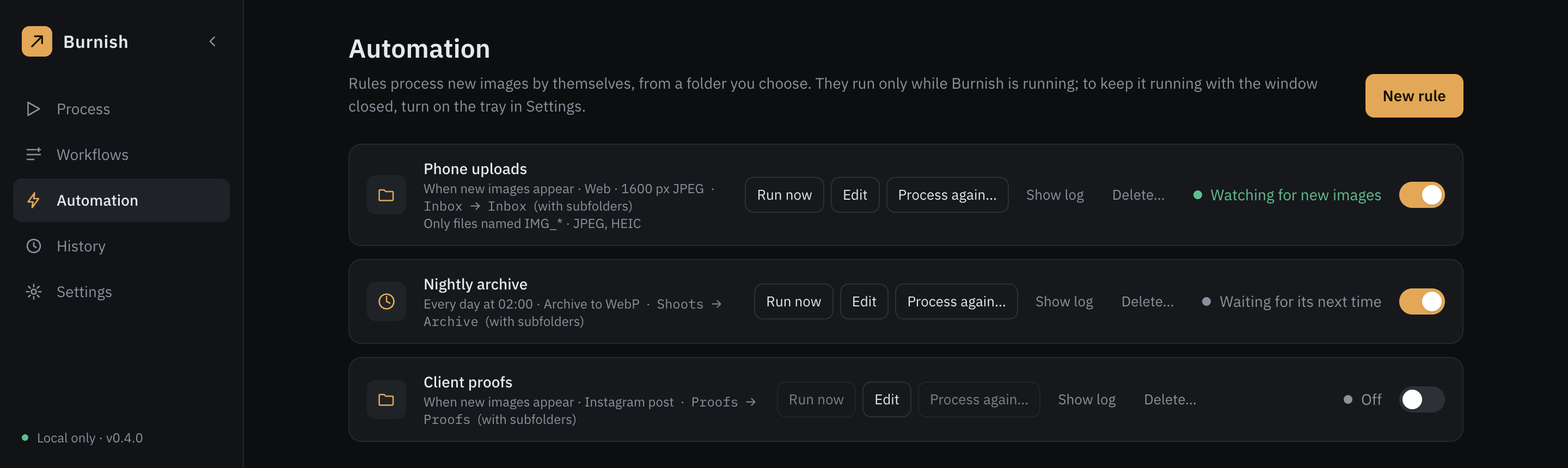
Watch a folder, or run at set times, and take only the files you want. Burnish runs while it is open, or sits in your menu bar or tray.
Formats it reads and writes
Open almost any common image, and save it as the format you need.
A look around
A calm interface for a repetitive job.
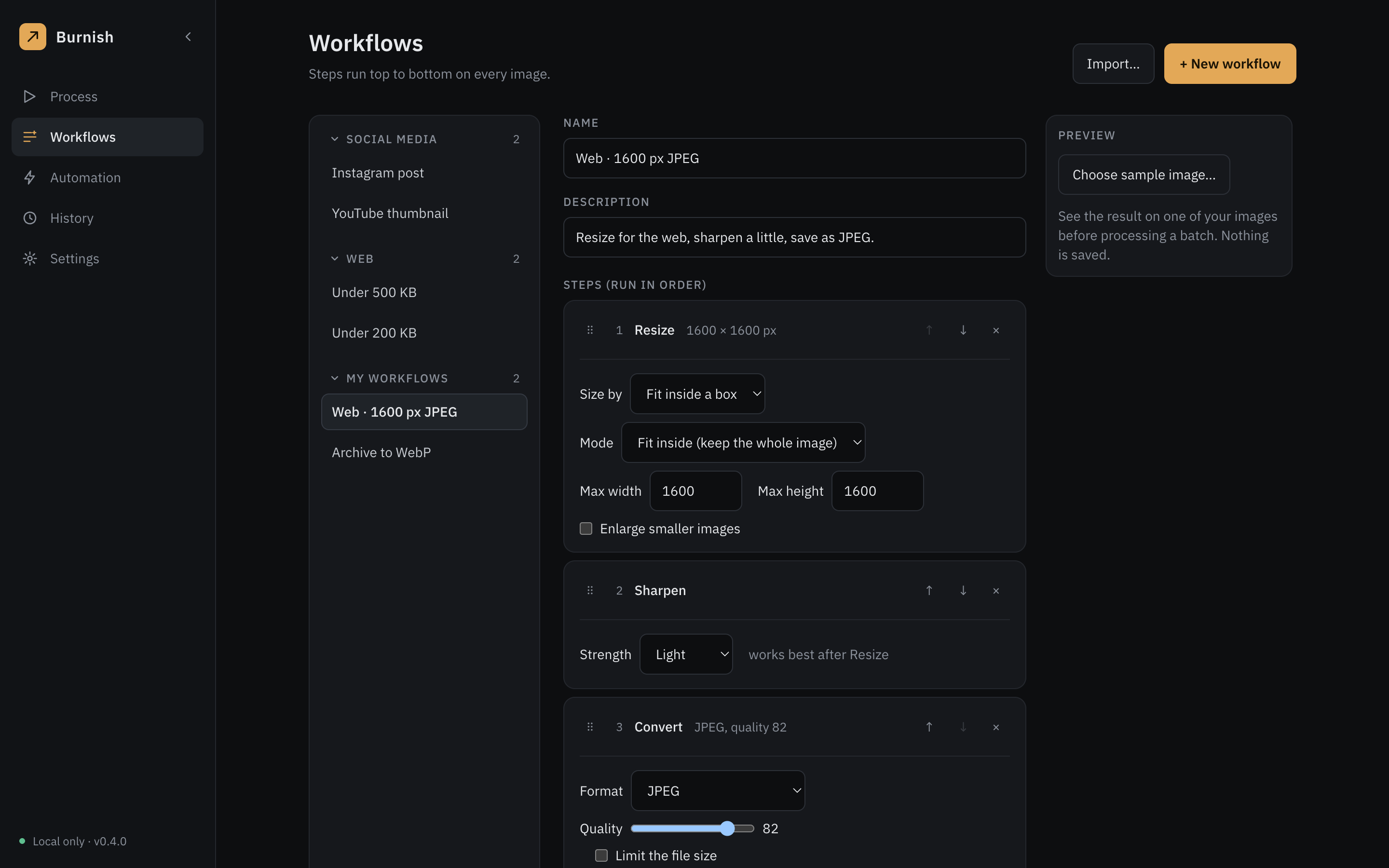
Build a workflow from steps
Resize, sharpen, convert, and more, in the order you choose. Every step has plain options, and steps that cannot go where you drop them are greyed out with the reason.
Let folders take care of themselves Pro
Watch a folder, or run at set times. Burnish runs while it is open, or sits in your menu bar or tray.
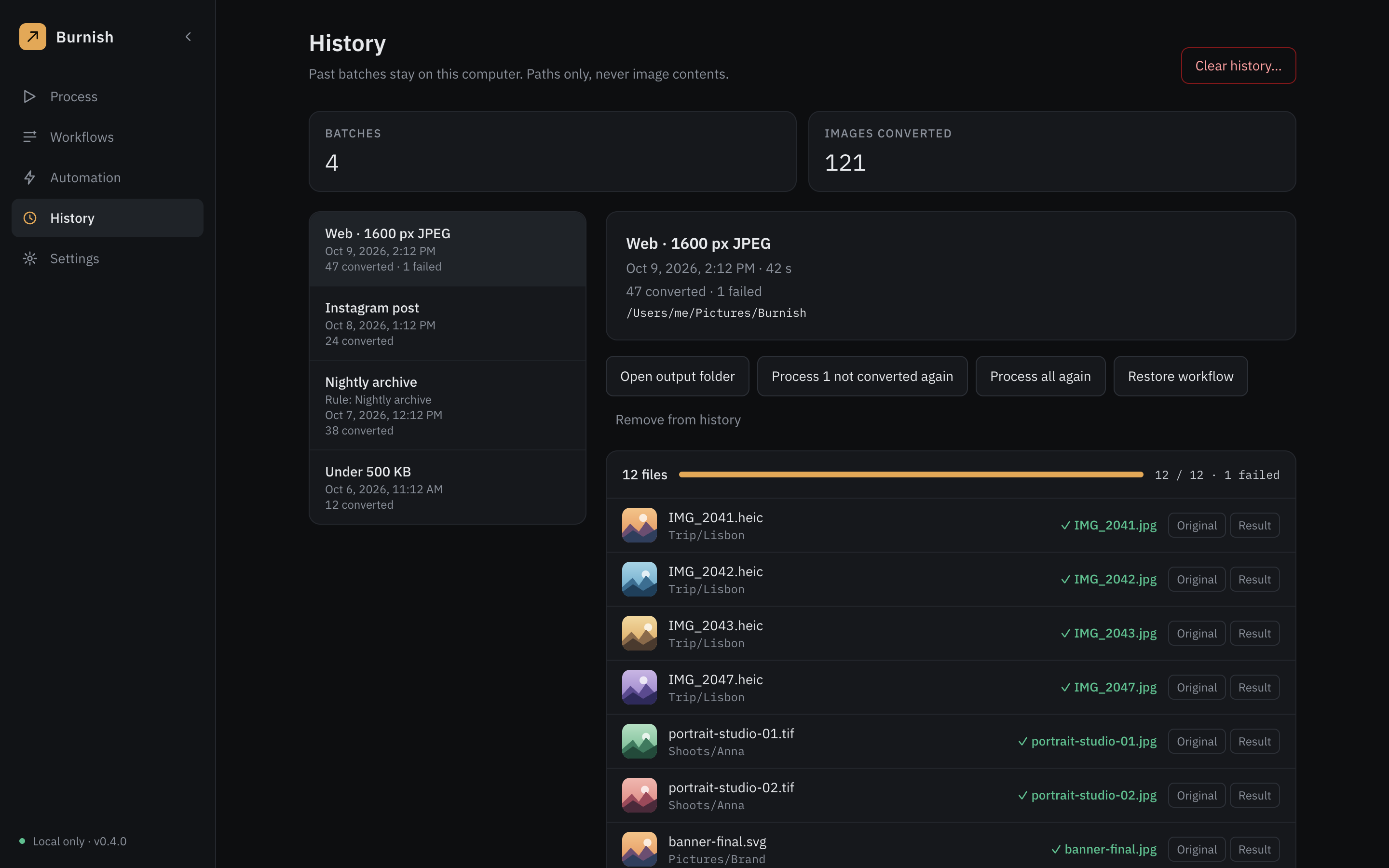
Know what happened to every file
Each past batch lists its files and where the results went. Show the original or the result in its folder with one click.
Yours to set up
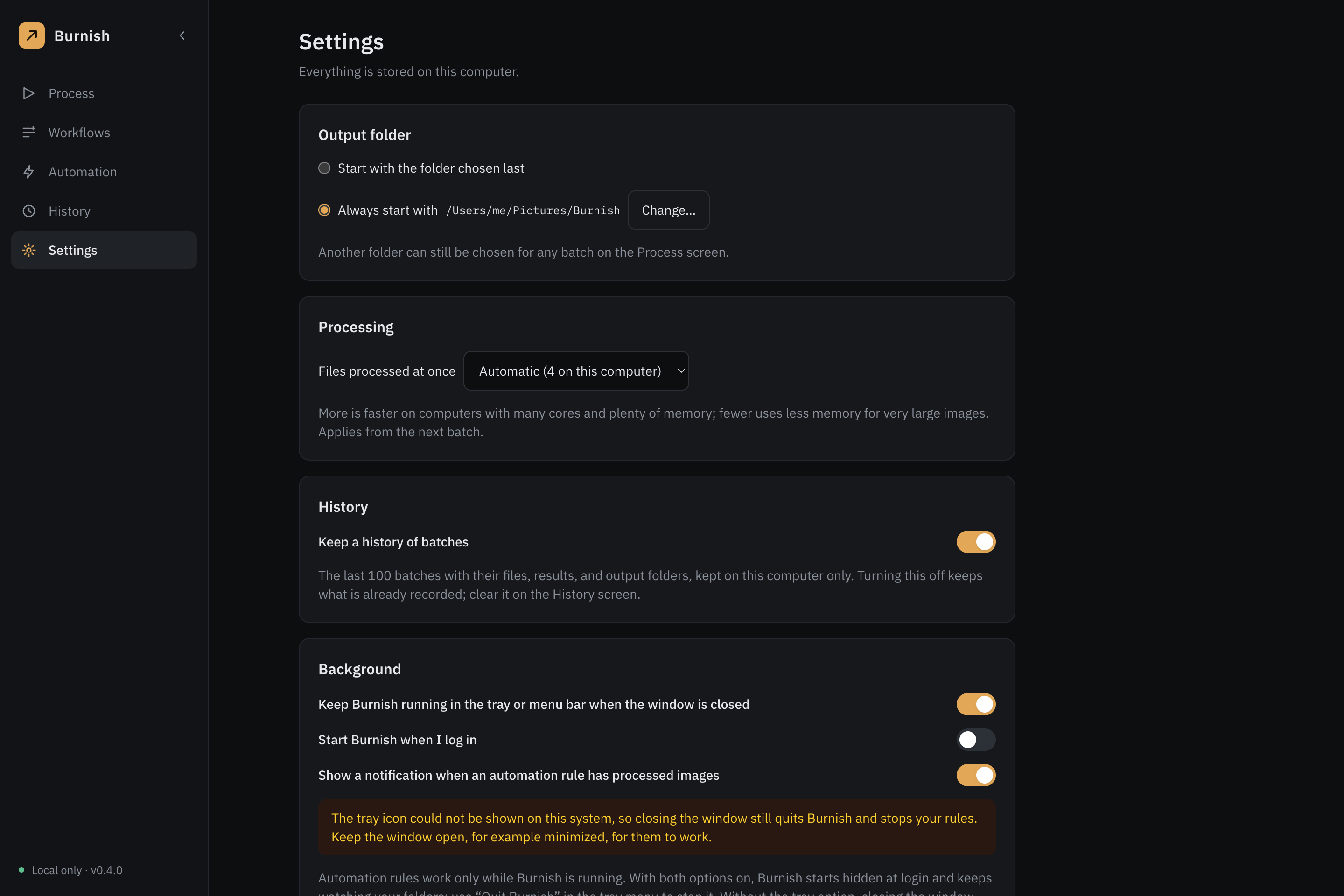
Choose where results go, how many files are processed at once, and whether Burnish keeps a history. Everything stays on your computer, and there is a light theme too.
Pricing
Free to try. Pro when you need more.
- Batches of any size, by hand
- Resize, crop, rotate, sharpen, convert, and the other steps
- All formats, 26 of the 29 ready-made workflows, preview, and history
- Everything in Free
- Automation: watch folders and scheduled runs
- Conditions, and a file size limit for the result
- Watermark, trim, border, and rounded corners
- On up to 3 computers, with all 1.x updates
Payment and the license key are handled at checkout. See the refund policy.
Download
Burnish 0.4 for three systems. The builds are not code-signed yet, so your system warns you the first time you open the app; the answer below explains how to open it.
macOS
Apple Silicon · .dmgComing soonWindows
64-bit · installerComing soonLinux
.deb, .rpmComing soonQuestions
Does Burnish upload my images?
No. Everything is processed on your computer, and your images, file names, and settings are never sent anywhere. Burnish goes online only to check once a day for a new version, which you can switch off in Settings, and to activate a Pro license key. There is no account, no analytics, and no tracking.
Will it change my original files?
No. Results are written to a separate folder you choose, and a name that is already taken is never overwritten unless you explicitly ask for that.
Why does my system warn me when I open it?
The builds are not code-signed yet, which takes a paid certificate. The warning is the system telling you that. The app works offline and never uploads files. On macOS, open System Settings, then Privacy and Security, and choose Open Anyway. On Windows, choose More info, then Run anyway.
Which images can it open?
JPEG, PNG, WebP, AVIF, TIFF, BMP, GIF, HEIC, and SVG. HEIC depends on your system: macOS decodes it; Windows needs the HEIF Image Extensions and HEVC Video Extensions from the Microsoft Store; Linux needs libheif with HEVC support from your distribution.
What does Pro add?
Pro adds automation (watch folders and scheduled runs), if conditions and a file size limit, and the watermark with the trim, border, and rounded-corner steps. It is one payment, with no subscription and no account. You paste the license key into Burnish once, and Burnish contacts the license service only then; after that Pro works offline. One license works on up to three computers and includes every 1.x update. Everything else, including manual batches of any size, stays free.
Try it on a folder you have been putting off.
Burnish never touches your originals, so there is nothing to lose.